
App blocking
Block the apps that pull you away, only while you are working
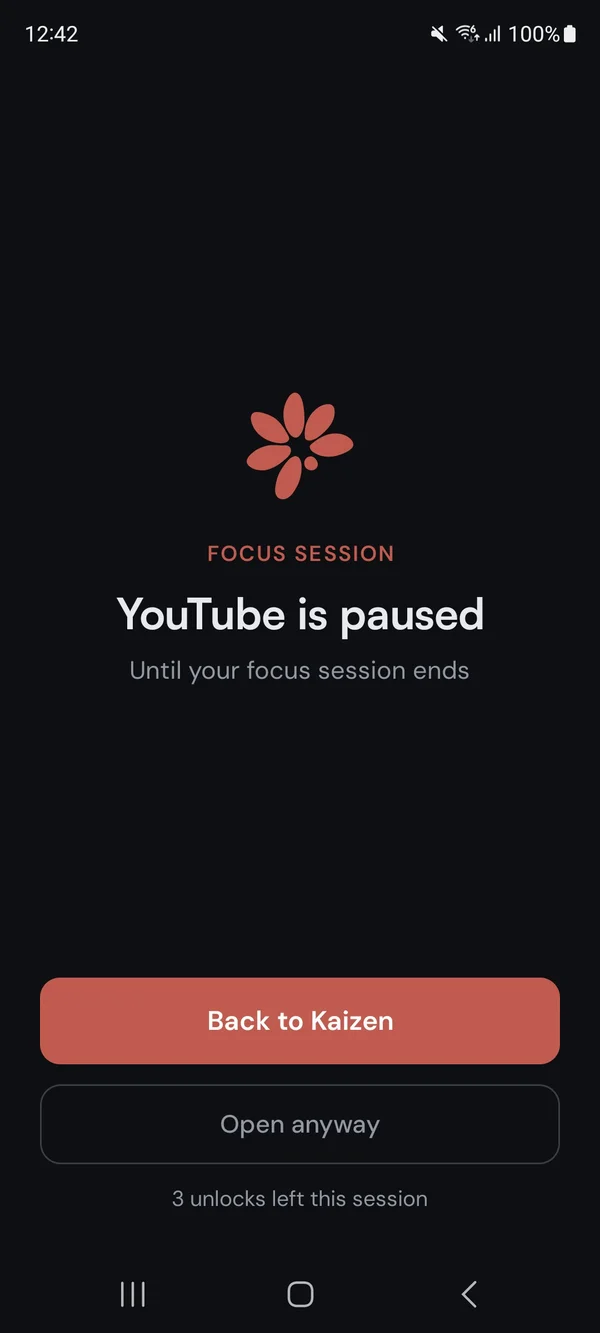
Pick the apps that get you. While a work session runs, opening one shows a block screen instead. Breaks unblock everything by themselves, then blocking resumes.


On iPhone, iPad, and Android.
Why a session
A block with an end you already agreed to
Built-in screen time tools mostly run on a daily quota, and getting back in means a trip into Settings, or on iPhone a tap on the limit itself. Kaizen blocks for a reason you just chose: a work session you started. The block ends when the session does, breaks lift it on their own, and the Pomodoro timer you already use is the thing that switches it on.
How it works
How app blocking works, in four steps
1. Pick your apps
Choose what to block. On iPhone and iPad you pick in Apple's own picker, and websites count too.
2. Grant the permission
Android sends you to Settings for usage access and permission to draw over other apps. On iPhone, Apple's own Screen Time prompt appears right in the app.
3. Start a session
Blocking switches on with your work timer or the stopwatch. A chip on the timer screen says how many apps are blocked right now.
4. Take your break
Breaks unblock everything by themselves. When the next work session starts, blocking comes back.
Block now
One button, no timer needed
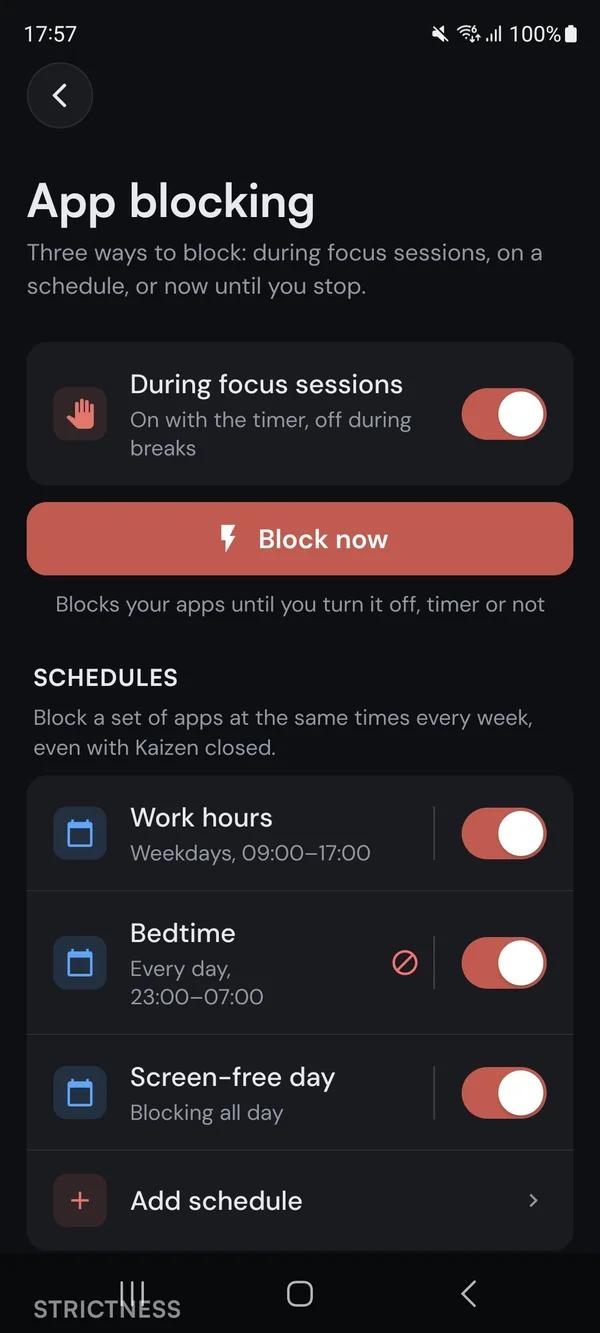
Some blocks are not about a session. Block now blocks your list right away and keeps it blocked until you turn it off, with the timer running or idle.
- Working at your computer?Tap Block now on your phone and run the session on your laptop. The phone stays blocked even though the timer is somewhere else.
- It ignores the timerBreaks and pauses do not lift it, so one tap covers a whole cycle, an evening, or a weekend.
- Off in one tapStop it from the same button, or straight from the notification Kaizen leaves on Android.
Schedules
Block apps on a schedule, even with Kaizen closed
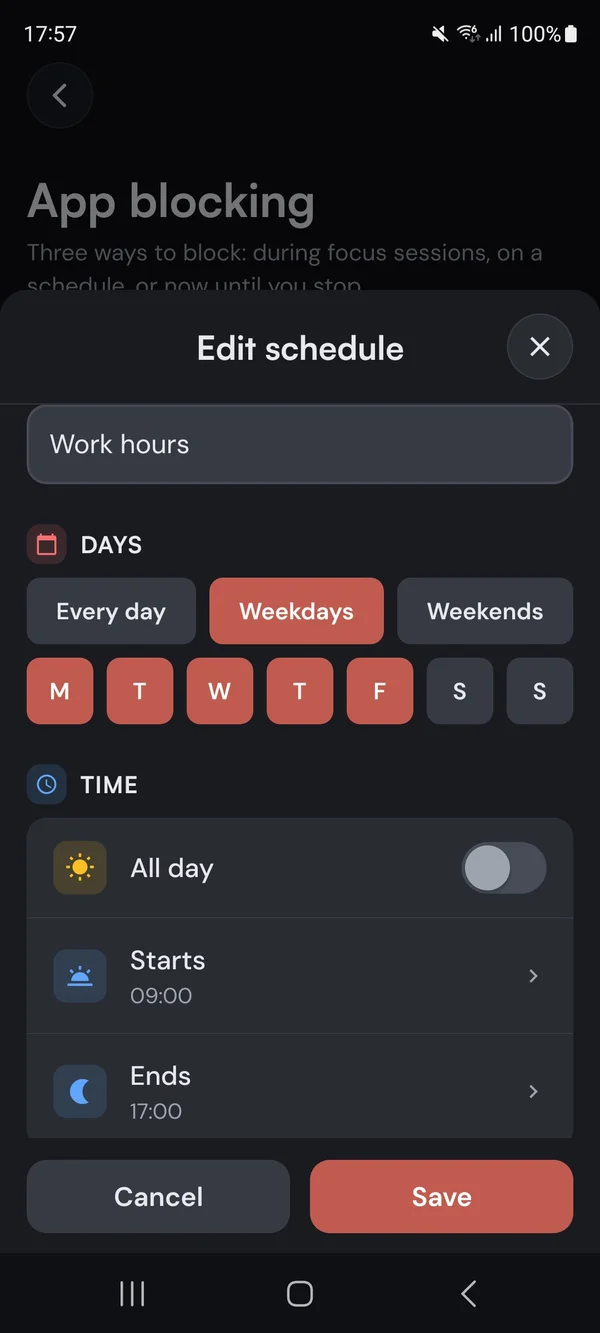
For the hours you already know you want back, like work hours or the hour before bed. A schedule blocks its own list of apps at the same times every week, on the days you pick.
- Your days, your hoursWeekdays, weekends, or any days you pick, all day or between two times. A block can run past midnight, and each schedule blocks its own apps.
- A day off when you need oneEnd today's block, skip the next one, or skip until a date up to 90 days out. After that it runs as usual.
- Normal or LockedYou can end or switch off a Normal block whenever you like. A Locked one, with Premium, cannot be ended, changed, or switched off once it starts, apart from one emergency end a week.
Strictness
Pick how hard the block holds
No blocker on a device you own is impossible to get around, ours included. What these levels buy you is friction. Normal is free, and the two stricter levels come with Premium.
Normal
A pause lifts the block, and skip, reset, end, and the app list all stay available.
Strict
The block holds through a pause, and your settings and app list are frozen, but you can still skip, reset, or end the session.
Locked
Strict, plus the session cannot be skipped, reset, or ended after its first minute, with one emergency end a week.
Open anyway
An escape hatch you set in advance
Real life interrupts. You decide beforehand whether the block screen offers a way through, and how much friction it puts in the way. Nothing is set on the block screen itself, and it works at every level, including Locked.
- How oftenOne to ten times a session (a schedule counts per day), or no limit at all.
- How long you waitNothing, or up to a minute before the button opens. Switch on Quick look to skip the wait for a short open, ten seconds to ten minutes, at half a use.
- How long it stays openOne to sixty minutes, then the block comes back.
Honestly
Four things worth saying out loud
What app blocking does not do, so nothing about it surprises you mid-session.
Your apps are not deleted or hidden
They are still on your phone. Opening one shows a block screen until the block ends.
Your dialer, alarms, and camera stay open on Android
A short list can never be blocked: the dialer, alarm clock, camera, Settings, and your home screen.
Notifications still arrive
Blocking stops you opening an app. It does not silence anything or hold your messages back.
Your list never leaves your phone
Not to our servers, not into crash reports, nowhere. On iPhone we cannot even see it.
Under the hood
What it uses, and what it does not
We built both native halves ourselves, so we can tell you exactly how the block works.
- AndroidUsage access to see which app came to the front, and permission to draw the block screen over it. Never the Accessibility service, and never the permission that lists every app you have installed.
- iPhone and iPadApple Screen Time, iOS and iPadOS 16.4 or later. You pick in Apple's own picker and Apple hands Kaizen a sealed token, so all it learns is how many.
- The limits, plainlyiPhone and iPad shield up to 50 apps and 50 websites, Apple's ceiling. Schedules keep blocking even after you close Kaizen.
In context
Part of the session, not a separate app
Blocking is one chip on the timer screen. The same session fills the task you pinned, feeds a focus-time habit, lands in your statistics under a tag, and can run inside a Focus Room next to other people. A blocker on its own stops you doing the wrong thing. This one also records the right thing.
Questions
The short answers
On iPhone, Kaizen uses Screen Time. The difference is what starts a block and what ends it. The built-in tools mostly count down a daily allowance. Kaizen blocks because you started a work session, set a schedule, or pressed Block now, so every block ends where you chose: with the session, at the schedule's end time, or when you turn it off.
Yes, with a block schedule. Choose the days, a start and end time or all day, and the apps, and Kaizen blocks them at those times every week, even when it is closed. Like all blocking, it works on iPhone, iPad, and Android.
Yes, and we would rather say so than pretend otherwise. On Android you can revoke the permission in Settings or force-stop Kaizen. On iPhone and iPad you can turn off Screen Time access. No blocker on a device you own is a cage. What you get is the few seconds between the impulse and the app, and a decision you already made while you were calm.
On iPhone it cannot. Apple hands back a sealed token, so Kaizen only ever knows how many. On Android it knows the package names, keeps them on the device, and never sends them anywhere, including to us.
Yes. A stopwatch session is a work session, so your list stays blocked while it runs, and the break lifts the block as usual. On Locked, Finish only unlocks once you reach your Focus Goal, so the stopwatch cannot become a quick way out.
No. Blocking needs a system permission that iPhone, iPad, and Android give apps and that Windows and browsers do not, so it runs in the iPhone, iPad, and Android apps only. Everything else in Kaizen, the timer, tasks, habits, Focus Rooms, and stats, works in a browser and on Windows too, with one account and one subscription across all of them.
Three apps, Block now, one block schedule, and every Open anyway setting are free on both platforms. Premium lifts the app limit, runs up to 8 schedules, and adds the Strict and Locked levels.
Block what pulls you away
On iPhone, iPad, and Android: while you focus, right away with Block now, or on a schedule.